Valorant FPS Boost: Optimize Settings for Peak Performance
Valorant FPS Boost: Optimize Settings for Peak Performance
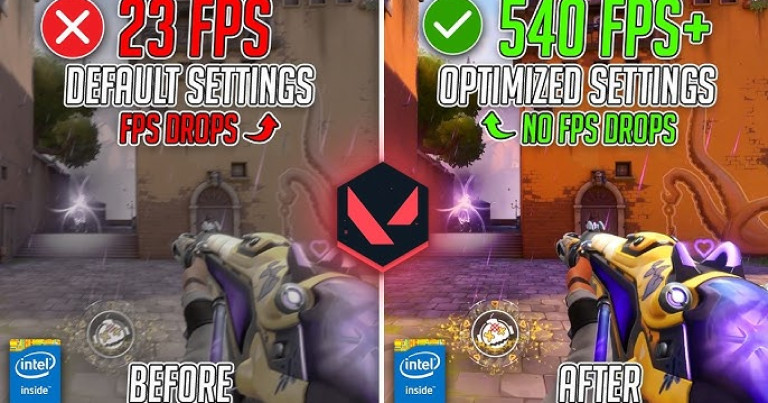
Experiencing lag or low FPS in Valorant can be incredibly frustrating, especially in clutch moments. Many players struggle to maintain a stable frame rate, hindering their performance and competitive edge. This guide provides a comprehensive breakdown of Valorant’s settings, offering proven strategies to maximize your FPS and ensure a smoother, more responsive gaming experience. Learn how to optimize your graphics, tweak your system, and gain a competitive advantage.
Understanding Valorant’s Performance Bottlenecks
Valorant, while optimized, can still suffer from performance issues depending on your hardware. The game relies heavily on both your CPU and GPU. Understanding where your system is bottlenecking is crucial for effective optimization. Here’s a breakdown of common bottlenecks:
- CPU Bottleneck: Low frame rates, stuttering, especially during intense firefights or with multiple agents using abilities.
- GPU Bottleneck: Low frame rates, especially at higher resolutions or with high graphics settings.
- RAM Bottleneck: Stuttering, slow loading times, especially with only 8GB of RAM.
Identifying Your Bottleneck
Use the in-game performance stats (Settings -> Video -> Stats -> Client FPS) to monitor your FPS during gameplay. If your FPS is consistently low, even on low settings, and your CPU or GPU usage is near 100%, you’ve likely identified your bottleneck. Tools like MSI Afterburner can also provide detailed hardware monitoring.
Optimizing Valorant’s Graphics Settings for Higher FPS
Valorant’s graphics settings offer significant opportunities for performance gains. Here’s a breakdown of the most impactful settings:
- Display Mode: Always use “Fullscreen” for the best performance.
- Resolution: Lowering your resolution can significantly boost FPS. Consider 1920×1080 or even 1600×900 if you’re struggling.
- Material Quality: Set to “Low”. This has a minimal impact on visual fidelity but can improve FPS.
- Texture Quality: Set to “Low”. Similar to Material Quality, this provides a good performance boost with little visual sacrifice.
- Detail Quality: Set to “Low”. This setting impacts the complexity of models and environments.
- UI Quality: Set to “Low”. This affects the clarity of the user interface.
- Vignette: Disable. This adds a dark border around the screen and can reduce FPS.
- VSync: Disable. VSync can introduce input lag.
- Anti-Aliasing: Disable or set to MSAA 2x. Anti-aliasing smooths jagged edges but can be performance-intensive.
- Anisotropic Filtering: Set to 1x or 2x. This improves texture sharpness at oblique angles.
- Improve Clarity: Disable. This post-processing effect can reduce FPS.
- Bloom: Disable. This adds a glowing effect to bright objects and can impact performance.
- Distortion: Disable. This adds a warping effect and can reduce FPS.
- Cast Shadows: Disable. Shadows are performance-intensive.
Beyond Settings: System Tweaks for Valorant Performance
Optimizing your system can further enhance Valorant’s performance:
- Update Graphics Drivers: Ensure you have the latest drivers from NVIDIA or AMD.
- Close Background Applications: Close unnecessary programs like web browsers, streaming software, and other resource-intensive applications.
- Adjust Power Plan: Set your power plan to “High Performance” in Windows.
- Disable Game Bar/DVR: These features can impact performance. Disable them in Windows settings.
- Overclocking: If you’re comfortable, overclocking your CPU and GPU can provide a performance boost.
Consistent FPS: The Key to Competitive Valorant
Maintaining a stable and high FPS is crucial for competitive Valorant. While individual skill is paramount, technical limitations can severely hinder your ability to react quickly and accurately. Don’t let lag be the reason you lose a crucial gunfight.
The detailed analysis shows how Valorant is a game of millimetric precision. But even mastering concepts, network problems can sabotage perfect executions – your smoke might deploy late, your flash might not blind at right timing, your peek might be punished before you even see the enemy.
NoPing eliminates these variables across 3,000+ games: Multi-Connection technology reduces lag by up to 80% and eliminates up to 100% of packet loss and jitter. Zero interruption, zero excuses. Your technical execution becomes as reliable as your theoretical knowledge.
Already know the theory? Now ensure the practice. Free 7-day trial and discover what it’s like to play Valorant when complex mechanics work exactly as you planned.
Published by automated system on May 14, 2026 at 12:00 AM